As you may already know, Trust.Zone VPN V2 includes Split Tunneling, which lets you choose which applications use the VPN and which connect directly. You could send a browser, torrent client or messenger through the VPN and leave other apps on your regular connection.
But did you know that you can also add individual websites? Choose whether each site opens through Trust.Zone VPN or your regular internet connection, and Trust.Zone V2 will apply the rule automatically.
Application rules still work as before. You can choose which apps go through Trust.Zone VPN and which ones do not. The new option goes one step further: it checks the website you open, not only the browser that opens it.
For example, you may want a blocked website to open through a Trust.Zone server, but prefer to visit your local bank with your regular IP address. Both websites can be open in the same browser. Trust.Zone V2 checks the rules you created and sends each site through the connection you selected.
We call this improvement Smart Tunneling for Websites. You set the rule once, and it is used automatically whenever the VPN is connected.
Banking, government and some shopping websites often expect a local IP address. A VPN connection may cause an extra security check, show the wrong local version of the site or stop the site from working correctly. Instead of disconnecting Trust.Zone, you can add only that website to the direct connection.
If a website is blocked on your network, you can add it to the VPN route. You can do the same for any website that should not see your real IP address. It will receive the IP address of the selected Trust.Zone server, while local services can stay on the direct connection.
It solves an annoying problem for anyone who uses one browser for everything. You do not need a second browser, a different rule for the whole browser or several VPN reconnections during the day.
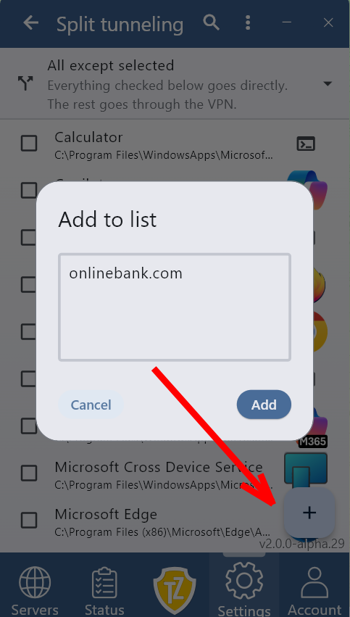 1. Open Trust.Zone VPN V2 and go to Settings.
2. Open VPN Settings and activate Split Tunneling.
3. In the window that opens, select which applications should use the VPN and which should connect directly.
4. Click the + button to add a website or application.
5. Choose whether the website should use Trust.Zone VPN or your direct internet connection.
Save the rule and open the website as usual. Trust.Zone V2 will choose the correct route automatically. You do not need to switch the VPN off or change the settings each time. The website will continue using the route you selected whenever Split Tunneling is active.
The new option does not replace Split Tunneling for applications. The two types of rules can work together. A torrent client can always go through the VPN, a game can use the direct connection, and individual websites in your browser can follow their own settings.
A website set to open directly does not use the Trust.Zone VPN tunnel. It will see your regular IP address, and its traffic will use your normal internet connection. If you want to hide your IP address from a website, make sure it is set to use the VPN.
Smart Tunneling for Websites came directly from requests by Trust.Zone users. Check that you are using the latest version of Trust.Zone VPN V2, set the rules once and browse as normal. Trust.Zone remembers which route each website should use.