Normally, when you connect to a VPN, all internet traffic from your device goes through the VPN. But sometimes you don't need every app to use it. Split Tunneling, available in Trust.Zone VPN V2, lets you choose which applications use the VPN and which connect directly to the internet.
With Split Tunneling, you can control the VPN connection for individual apps. You can send only selected apps through Trust.Zone VPN V2 while everything else uses your regular connection, or do the opposite: keep most apps on the VPN and exclude only the ones that need a direct connection.
This means you don't have to disconnect the VPN just because one particular app needs to use your normal internet connection.
Suppose a messaging app or another service is restricted on your network, while everything else works normally. Instead of routing all your traffic through the VPN, you can use Trust.Zone only for that app.
 For example, you can configure Telegram to use the VPN while your regular browsing stays outside it. We describe this scenario in more detail in our article about using Trust.Zone VPN to unblock Telegram.
Split Tunneling can also be useful in other everyday situations:
The idea is simple: Split Tunneling lets you use the VPN only where you need it, without changing the connection for every app on your device.
Split Tunneling is built into Trust.Zone VPN V2. Open the app and go to Settings → VPN Settings → Split Tunneling. Activate Split Tunneling. From there, select how you want Split Tunneling to work and choose the applications you want to include or exclude.
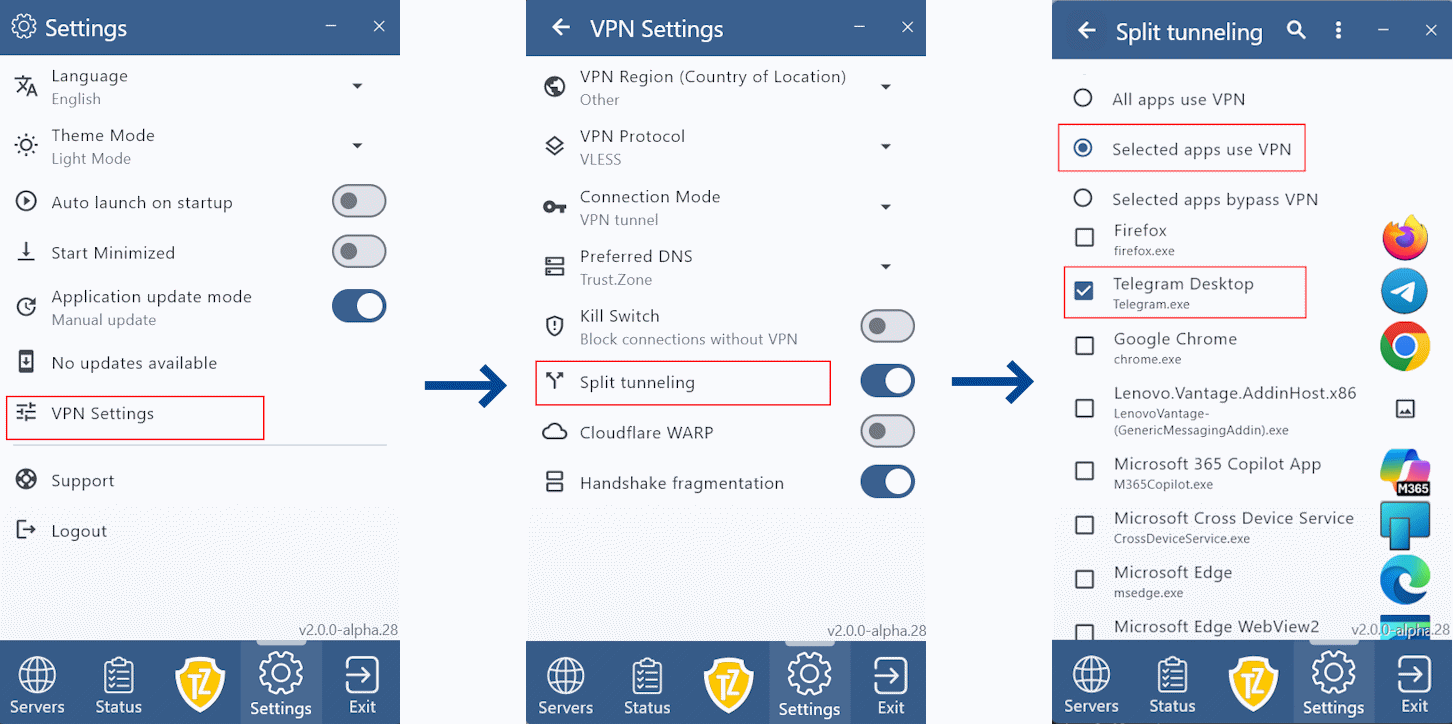
Once configured, Trust.Zone will automatically apply these settings when you use the VPN.
You can download the latest Trust.Zone VPN V2 app here.
Apps that you exclude from the VPN use your regular internet connection and your regular IP address. So if you want to hide your IP or protect the traffic of a particular app with Trust.Zone, make sure that app is set to use the VPN.